


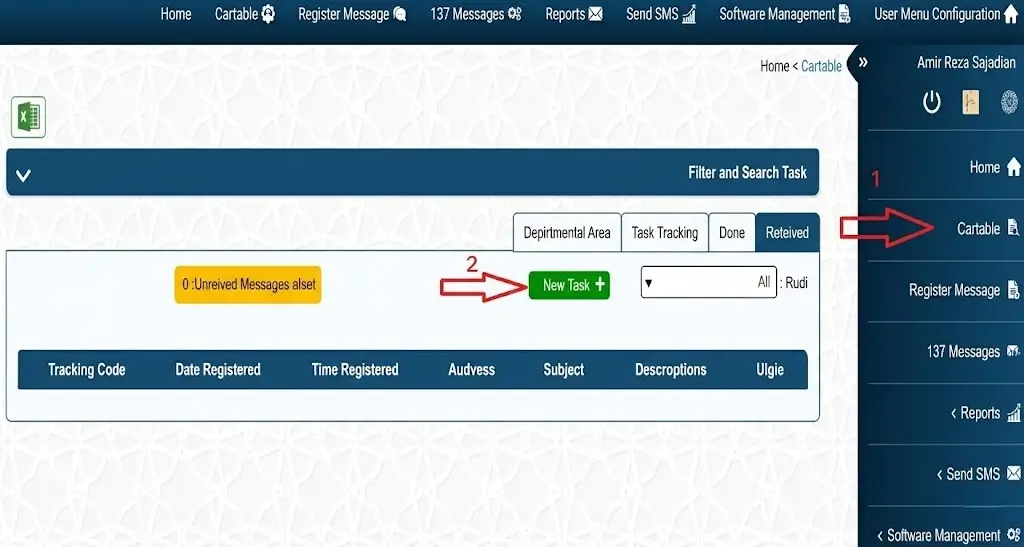

In iAPP, an option has been created outside the automatic workflow defined in the system. This option allows you to assign a new task to a user or a role. To access this option, go to the Dashboard and click on New Task.
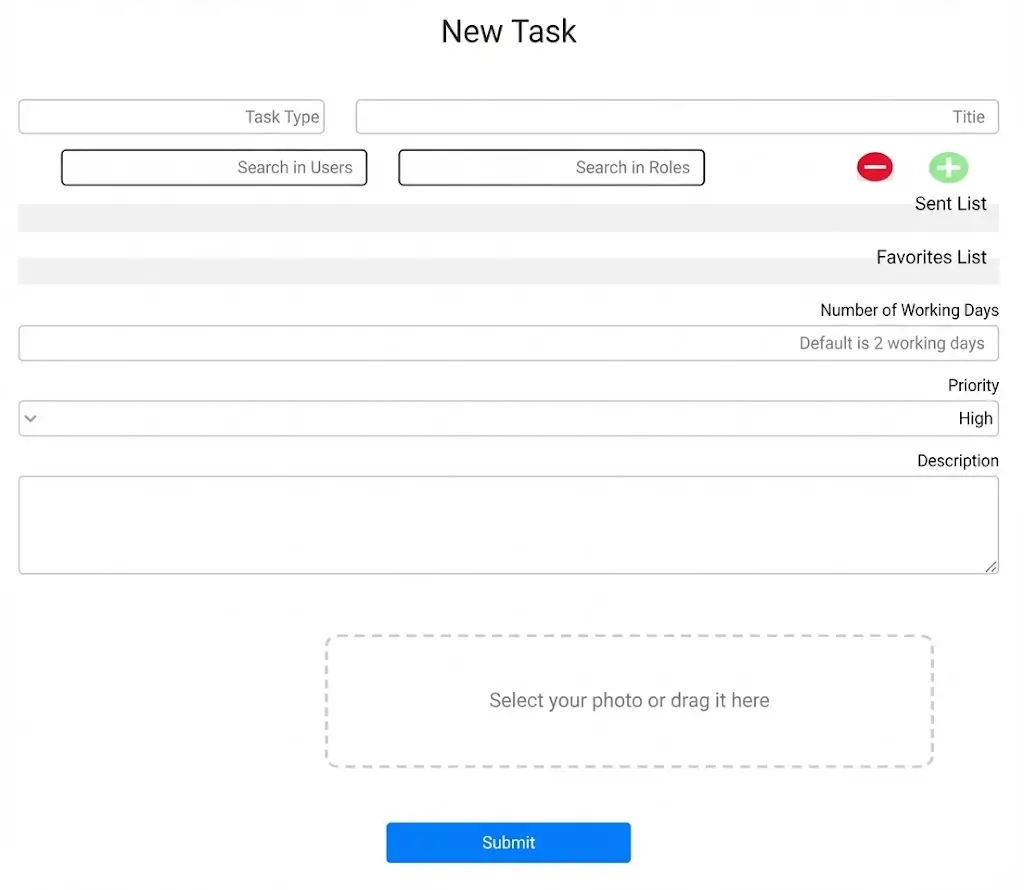
Title: The title of the task you want to send.
Example: Reviewing a citizen request
Search in Roles: Select the role to which you want to send the task.
Search in Users: Select the user to whom you want to send the task.
Favorites List: You can add users or roles with whom you interact most frequently to the favorites list for quicker access.
By clicking the + button, you can add the selected role or user to the favorites list.
By clicking the – button, you can remove the selected role or user from the favorites list.
Number of Working Days: Specifies the time frame for completing the task.
Description: Additional details related to the task are entered here.
You also have the option to attach an image to this task.
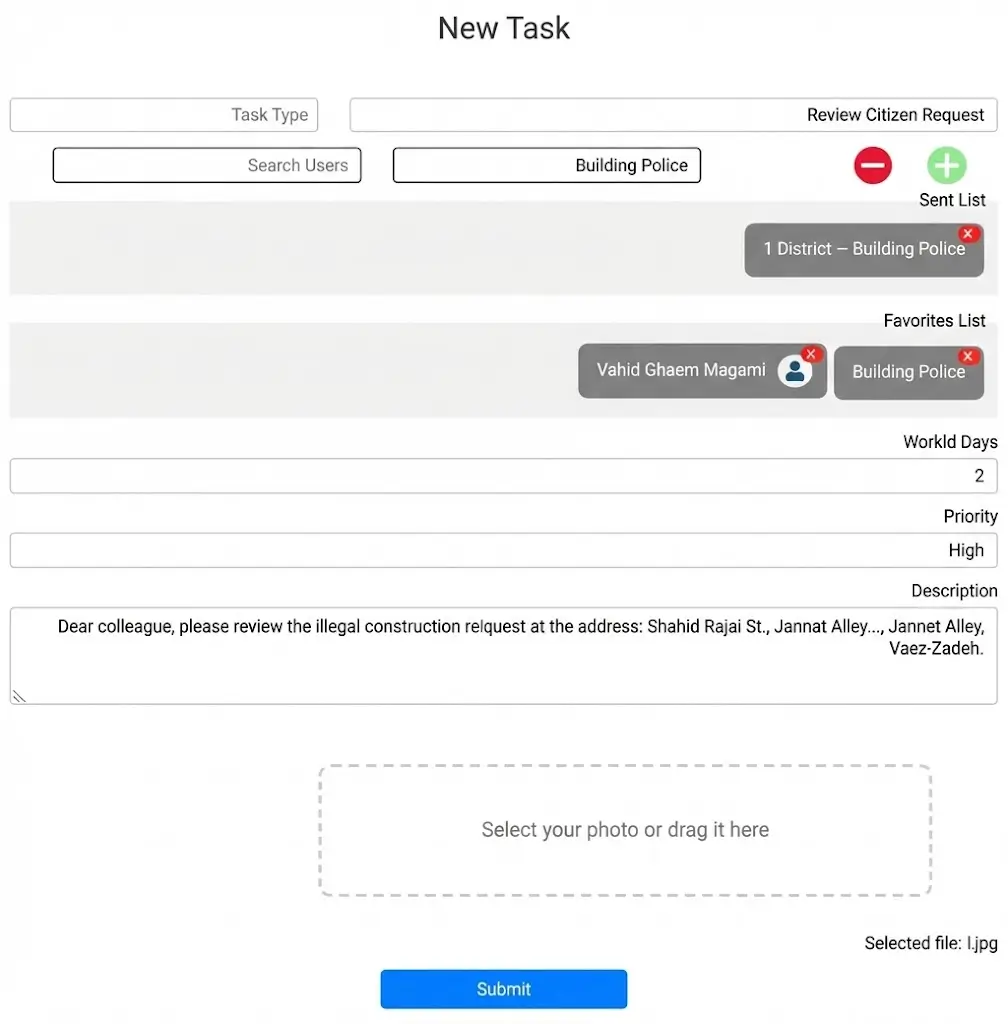
You can see a sample of a completed New Task form.
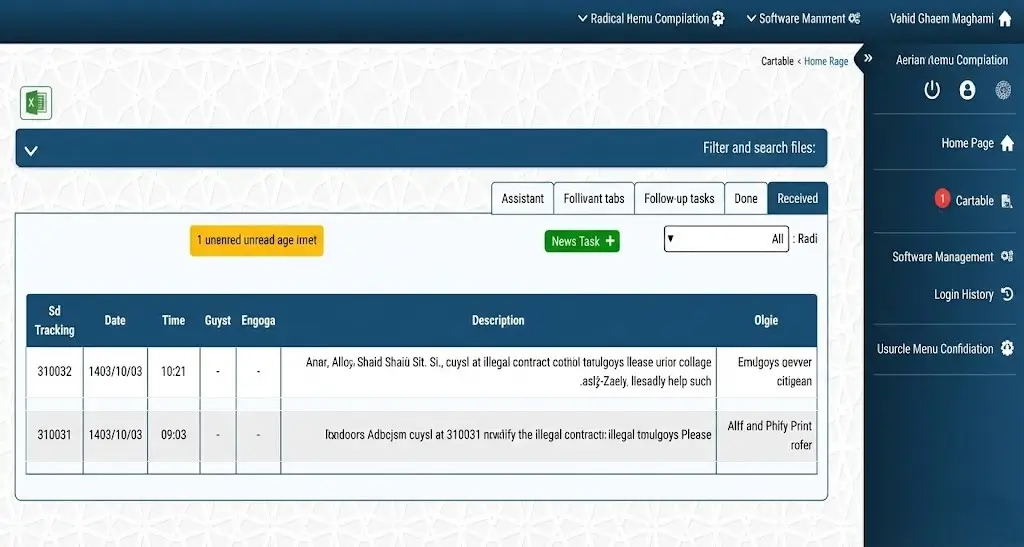
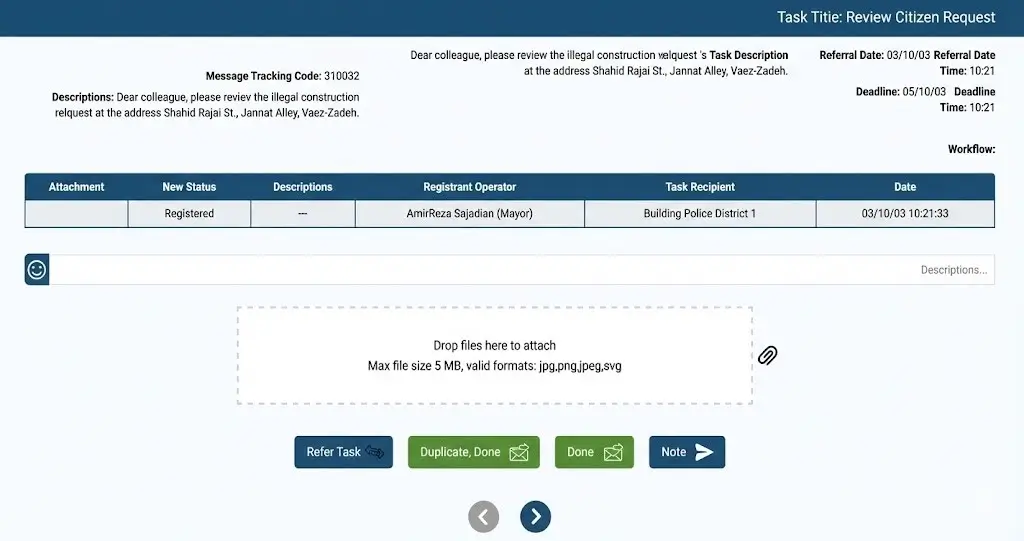
The sent task is visible in the Incoming Dashboard of the Building Police Officer of Zone 1. To view task details, click on the task.
On this page, you can view items such as the referral date, deadline, task description, tracking code, and more. You can attach notes or images showing the progress of the work. You may reassign the task to another person or, after completion, change the task status to Completed.
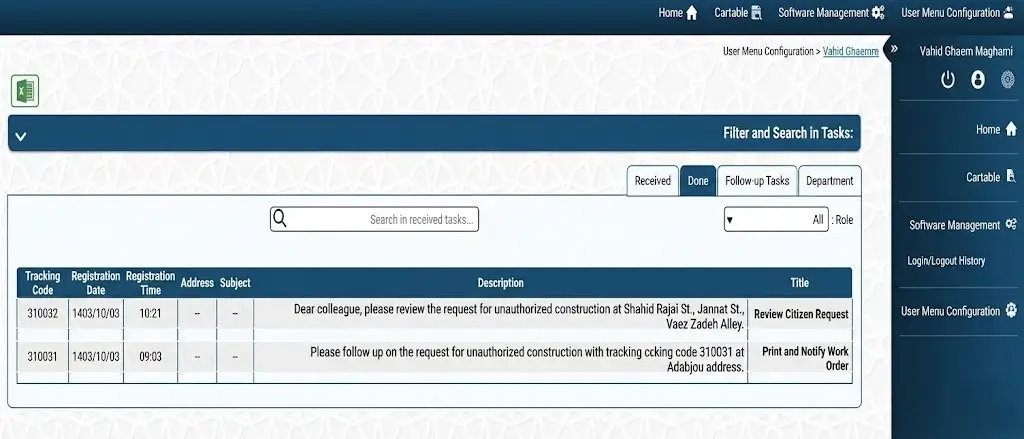
After finishing the work, the task will be visible in the Completed Dashboard of the Building Police Officer of Zone 1.